Operations
Each page below covers one thing you can do in mobiCut. Start with Projects if you’re new, then The editor for a tour of the screen.
The editor at a glance
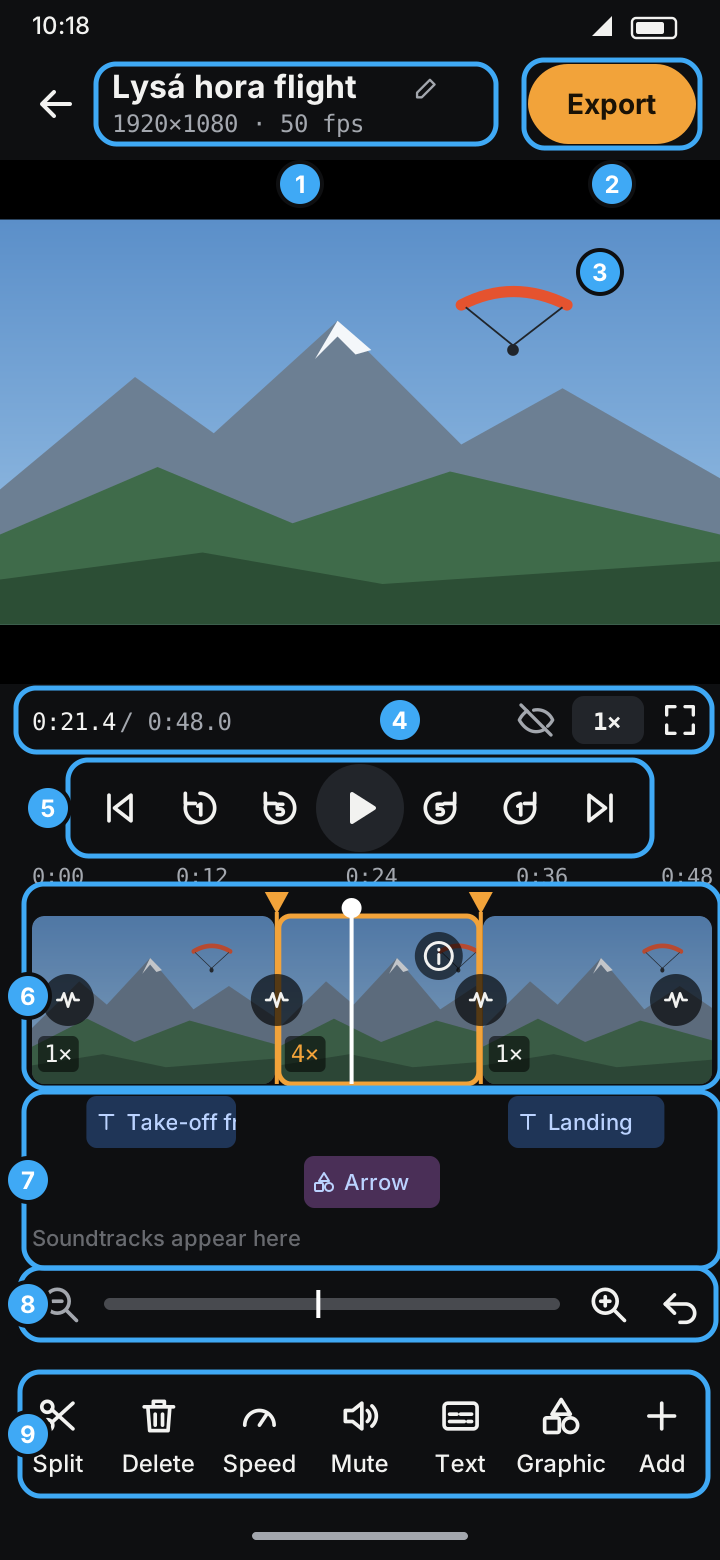
- Project name and video details. Tap to rename.
- Export: build the finished video. See Export.
- Preview. Shows the video as it will look: deleted parts are skipped, speed, transitions texts and graphics are applied. Tap a text or graphic on the video to place, turn and style it.
- Player bar: the position and the length of the finished video (
0:21.4 / 0:48.0), the eye to show deleted segments, the preview speed (1×) and full screen. - Play / pause, with to the beginning, back 1 s, back 5 s, forward 5 s, forward 1 s and to the end around it.
- Timeline. Each block is a segment; orange markers are splits; the white line is the playhead. See The editor.
- Lanes. Blue chips are texts, purple ones graphics: tap one to edit it, drag it to move it in time. Below them, soundtracks.
- Zoom out, the whole video, zoom in, Undo. The bar is the whole video: the light part is what the timeline shows, the white line is the playhead; tap or drag it to go there.
- Tools: Split, Delete / Restore, Speed, Mute, Text, Graphic and Add.
Add: slides, pictures, soundtracks, transitions, more videos
Add (the last tool) puts more into the project:
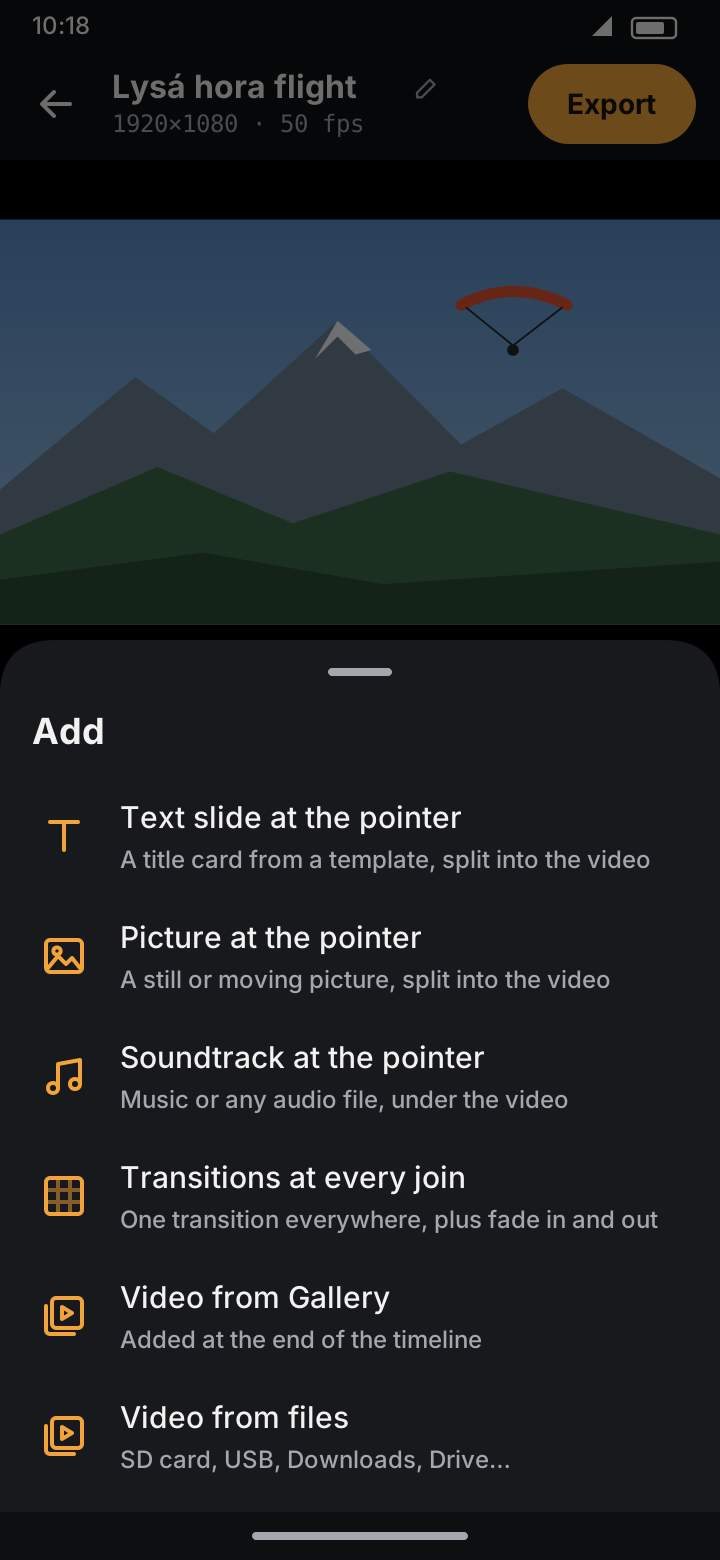
- Text slide at the pointer: a title card from a template, split into the video.
- Picture at the pointer: a still or moving picture, split into the video.
- Soundtrack at the pointer: music under the video, in its own lane.
- Transitions at every join: one transition everywhere, plus fade in and out.
- Video from Gallery / from files: another video at the end of the timeline.